The view cube
A cube in the corner that says which way you are facing, and takes you anywhere.
Off until you ask for it. /cube on puts it in the top right
of a 3D view; /cube off takes it away. It is remembered after
that.
Using it
- Click a face - look at the model square on from that side.
- Click an edge - the half turn between two sides.
- Click a corner - the three-quarter view most drawings are read from.
- Drag it - turn the model, the same as middle-dragging. Let go within a few degrees of one of its views and it clicks square onto it; hold Ctrl as you let go and it clicks onto the nearest view from anywhere.

One thing to expect whatever you click: the cube rolls as the view does, so where a corner was a moment ago is not where it is now. Aim after it has settled, not before.
From the keyboard
In the 3D view, Ctrl and an arrow key walks around the cube a step at a time, gliding the same way a click does.
- Ctrl+→ and Ctrl+← go around the sides - a face, the edge beside it, the next face.
- Ctrl+↑ tips up towards the top, and Ctrl+↓ down towards the bottom.
- Looking straight down, left and right turn the drawing an eighth of the way round instead.
The cube does not have to be showing for this to work.
Every click flies the camera there rather than jumping, and it pivots on what you are looking at. Watching it turn is what stops you losing your place.
Where it sits
/cube tl, tr, bl or br
puts it in whichever corner suits you. Top right unless you say
otherwise.
Framing what you picked
/cube fitselection on makes a click bring what you have
selected into the middle and size it on the way round. With nothing
selected it never re-frames - it just goes to the view you asked for.
/cube fitselection off turns it back off.
Why it is there
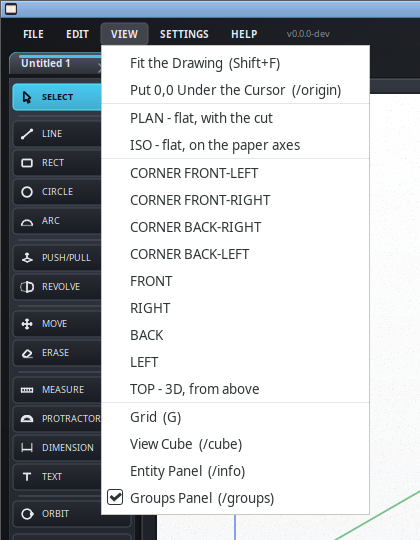
The VIEW menu along the top tells you the name of a view. The cube tells you which way around you are, which is the thing you actually want to know when you have been spinning a model for ten minutes. This one is Revit's idea; SketchUp has no such thing.